Optimizing caching for a WooCommerce store is crucial for improving site speed and enhancing user experience. A faster website not only retains visitors but also plays a vital role in increasing conversions and boosting search engine rankings. In this article, we will explore practical strategies to optimize caching for WooCommerce, covering various types of caching, configuration tips, common pitfalls to avoid, and best practices to ensure your online store performs at its best.
Understanding the Types of Caching
Before delving into optimization techniques, it’s essential to understand the different types of caching that can benefit your WooCommerce store:
- Page Caching: Stores entire HTML pages to serve them quickly instead of generating them on the fly.
- Object Caching: Caches database query results, reducing the need for repetitive database calls.
- Opcode Caching: Stores precompiled script bytecode, allowing PHP scripts to run faster.
- Browser Caching: Instructs browsers to store copies of static resources to speed up subsequent requests.
Choosing the Right Caching Plugin
Selecting an appropriate caching plugin lays the foundation for optimization. Popular options include:
- WP Rocket: A premium solution that combines various performance optimization features, including page caching, minification, and lazy loading.
- W3 Total Cache: A free and comprehensive plugin that supports page caching, object caching, and database caching.
- WP Super Cache: Simple to use, this plugin focuses on page caching and is ideal for beginners.
Choose a plugin that meets your specific needs and offers compatibility with WooCommerce features.
Configuring Caching Settings for WooCommerce
Optimizing caching settings correctly is vital for WooCommerce performance. Here are key configurations to consider:
Page Caching
When enabling page caching:
- Ensure that dynamic content (like cart, checkout, and user account pages) is excluded from caching to prevent issues with session data.
- Consider using “cache warming” to pre-cache popular pages at set intervals.
Object Caching
For object caching, use a persistent backend like Redis or Memcached to efficiently cache database queries.
- Set up your hosting environment to support Redis or Memcached.
- Monitor cache hit rates to gauge effectiveness.
Opcode Caching
Use opcode caching to enhance PHP execution:
- Check if opcode caching is enabled on your server (most hosting providers support it).
- Tune the caching duration based on website traffic and content update frequency.
Browser Caching
Implement browser caching by modifying the .htaccess file or using your caching plugin:
- Set expires headers for static resources (images, CSS, JavaScript) to improve load times on repeat visits.
- Consider a caching duration of 1 month or more for infrequently changed assets.
Implementing CDN for Enhanced Caching
A Content Delivery Network (CDN) can significantly improve loading times for global users:
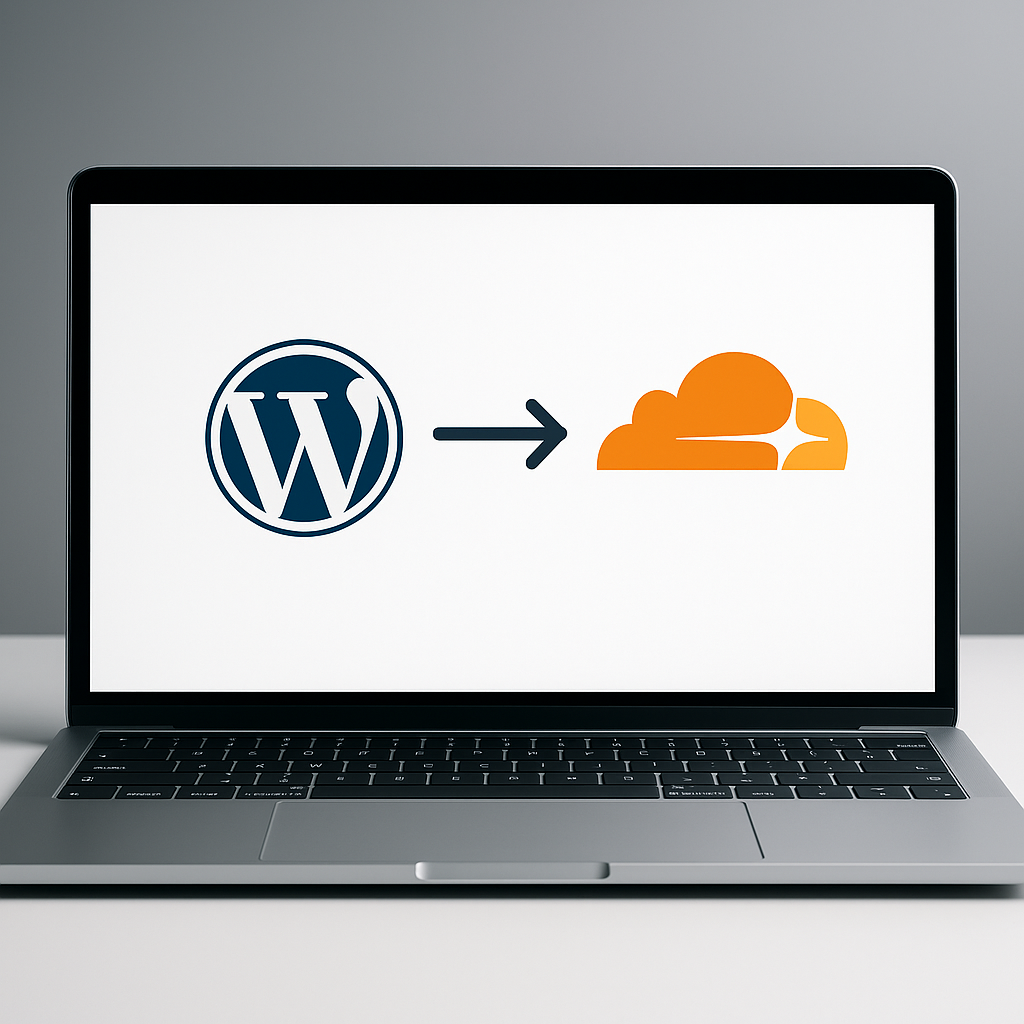
- Choose a reputable CDN: Cloudflare and StackPath are popular choices that work well with WooCommerce.
- Configure your CDN: Integrate it with your caching plugin and set up caching rules as per your needs.
By using a CDN, static resources can be served from locations closer to the user, reducing latency.
Monitoring Performance and Cache Effectiveness
Regularly monitor your website’s performance to identify areas that may need adjustments:
- Use tools such as Google PageSpeed Insights or web.dev to analyze load times and caching efficiency.
- Check insights for Core Web Vitals to ensure a smooth user experience.
- Keep an eye on your cache hit rate through your caching plugin dashboard.
Common Mistakes to Avoid
While optimizing caching, steer clear of these common pitfalls:
- Not Excluding Dynamic Pages: Failing to exclude pages like the checkout and cart from caching can lead to serious functionality issues.
- Over-Caching: Caching everything without considering how often content changes can result in stale content deliveries.
- Neglecting Cache Clearing: Ensure your cache is cleared after updates to your store to prevent old content from being served.
Best Practices for Caching in WooCommerce
Follow these best practices to maximize the effectiveness of your caching strategy:
- Regularly Test Performance: Schedule frequent tests after making changes to your site to monitor impacts on speed.
- Utilize Gzip Compression: Enable Gzip compression in your caching settings to reduce file sizes and speed up loading times.
- Aggregate and Minify Assets: Use your caching plugin to minify CSS and JavaScript files and aggregate them for fewer requests.
- Keep Everything Updated: Regular plugin, theme, and WordPress updates ensure compatibility and performance improvements.
Conclusion
Success in eCommerce relies heavily on user experience and site performance, and optimizing caching for WooCommerce is an integral part of achieving this. By thoughtfully selecting the right settings, utilizing a CDN, and avoiding common pitfalls, you can create a fast and efficient online store. Regular performance monitoring will help you stay ahead and ensure that your site offers the best experience for your customers.
Frequently Asked Questions
What is the best caching plugin for WooCommerce?
The best caching plugin can vary, but popular options like WP Rocket and W3 Total Cache are often recommended due to their comprehensive features and ease of use.
Can caching plugins conflict with other plugins?
Yes, caching plugins can sometimes conflict with other plugins, particularly those that handle dynamic content. Always test after installation and adjust caching settings as needed.
How does a CDN enhance caching?
A CDN enhances caching by distributing cached versions of static content across multiple servers worldwide, allowing users to access them from a location nearer to them, which reduces load time.
Is caching important for SEO?
Yes, caching is crucial for SEO, as faster loading sites typically rank better and provide a more pleasant user experience, leading to higher conversion rates.