
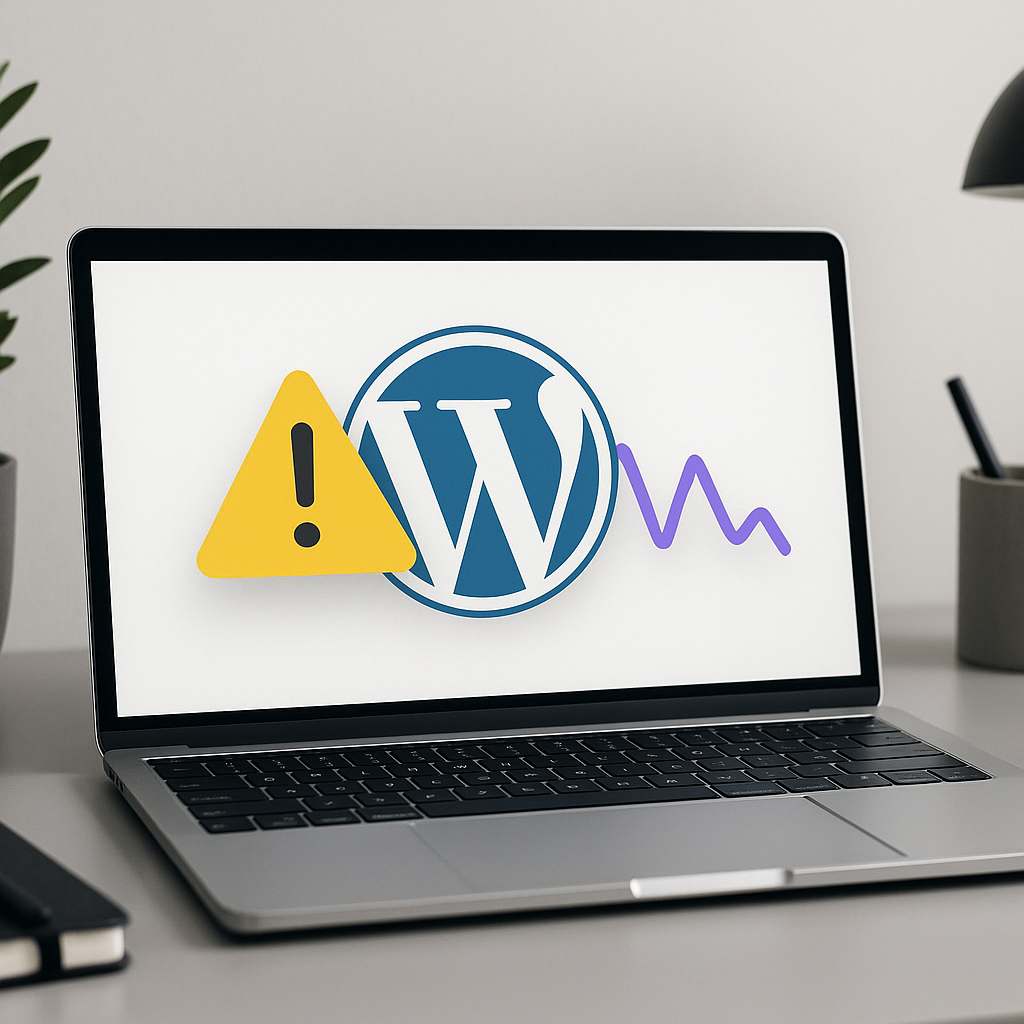
A website’s loading speed and performance are crucial for user experience and SEO, with Cumulative Layout Shift (CLS) being an important metric within Google’s Core Web Vitals. CLS measures visual stability and ensures that content doesn’t shift unexpectedly during page load. A high CLS score can lead to a frustrating experience for users, ultimately affecting conversion rates and search rankings. This guide will walk you through the essential steps to identify, understand, and fix CLS issues on your WordPress site.
Understanding Cumulative Layout Shift (CLS)
CLS quantifies the amount of unexpected layout shift of visual elements on a webpage. This can occur for various reasons, such as images without defined dimensions, late-loading web fonts, or dynamic content appearing unexpectedly. A score of 0.1 or lower is desirable, indicating minimal unexpected movements.
Why is CLS Important?
- User Experience: High CLS can lead to accidental clicks on ads or buttons and overall frustration.
- SEO Impact: Google now factors Core Web Vitals, including CLS, into ranking algorithms.
- Conversion Rates: A poor user experience can directly impact bounce rates and conversions.
How to Identify CLS Issues
Before fixing CLS issues, it’s essential to identify what’s causing them. Here are practical steps to help you diagnose your WordPress site’s CLS problems.
Using Google PageSpeed Insights
Google PageSpeed Insights provides a comprehensive analysis of your site’s performance, including CLS metrics.
- Visit Google PageSpeed Insights.
- Enter your website URL and click “Analyze.”
- Scroll to the “Cumulative Layout Shift” section to see the score and recommendations.
Chrome DevTools
Chrome’s built-in DevTools can also help analyze layout shifts:
- Open your website in Google Chrome.
- Right-click on the page and select “Inspect.”
- Go to the “Performance” tab, and click “Record” to capture loading behavior.
- Refresh the page and analyze the report for layout shifts.
Common Causes of CLS
Understanding the common culprits of CLS can help you efficiently resolve issues. Here are some frequent causes:
- Images Without Dimensions: If images lack width and height attributes, the browser doesn’t know how much space to allocate.
- Ads, Embeds, and Iframes: These elements can cause shifts if their dimensions aren’t fixed.
- Late Loading Web Fonts: When web fonts load, text can shift as the default font renders before the custom font.
- Dynamic Content: Adding elements such as comments or sliders can cause layout shifts if not handled properly.
Fixing CLS Issues in WordPress
Now that you know the causes and how to diagnose them, let’s cover how to fix CLS issues effectively.
1. Define Dimensions for Images and Videos
Always define the width and height attributes for images and videos. This ensures the browser reserves the correct amount of space when loading these elements.
2. Implement Responsive Images
Use the srcset attribute to serve different image sizes based on device resolutions. This practice ensures images appear correctly on all screen sizes.
3. Avoid Inserting Dynamic Content Above Existing Content
When adding dynamic content—like advertisements or comments—ensure it loads in a way that doesn’t push other content down. Reserve space for these elements in your layout.
4. Optimize Web Fonts
To prevent font shifts:
- Implement
font-display: swap;in your CSS. - Use a robust font loading strategy to preload critical fonts.
5. Use CSS Placeholders for Elements
For elements that may load later (like iframes), use CSS styles to give them a fixed height and width.
6. Utilize Plugins for Optimization
Consider using plugins that assist with optimizing images and loading resources effectively. Popular options include:
Testing CLS Improvements
After making changes, it’s important to retest your site to see if your CLS score has improved.
- Re-run your website through Google PageSpeed Insights.
- Check the CLS section and compare scores.
- Use Chrome DevTools again to analyze detailed performance.
Common Mistakes to Avoid
While fixing CLS issues, you may encounter pitfalls. Keep these in mind:
- Relying solely on caching plugins without addressing the root causes.
- Ignoring responsive design principles that can affect mobile users.
- Overlooking the impact of third-party scripts that can interfere with layout stability.
Best Practices for Maintaining Low CLS
To maintain low CLS scores, here are some best practices to consider:
- Regularly audit your site for layout shifts after major updates or new implementations.
- Ensure consistent design across page templates.
- Keep your theme and plugins updated to benefit from performance optimizations.
Conclusion
Addressing CLS issues is a key component of creating a seamless user experience on your WordPress site. By implementing the steps outlined above and continuously monitoring your site’s performance, you can significantly improve your CLS score, enhance user satisfaction, and boost your SEO efforts. For more in-depth assistance with website performance, check out the extensive WordPress documentation or explore WordPress services that can help optimize your site further.
Frequently Asked Questions
What is a good CLS score?
A good CLS score is 0.1 or lower, indicating minimal unexpected layout shifts.
How do I check my website’s CLS score?
You can check your CLS score using tools like Google PageSpeed Insights or Chrome DevTools.
Can plugins help fix CLS issues?
Yes, optimization plugins can help improve overall site performance and address specific CLS problems.
How often should I check my CLS score?
Regular checks, especially after major updates or modifications, are recommended to ensure optimal performance.





2 Responses
Nice post! I really enjoyed reading it. Please keep sharing more helpful and informative content like this.
Thanks For your Response. Sure, I do!