Understanding the Importance of Page Speed for Your WooCommerce Store
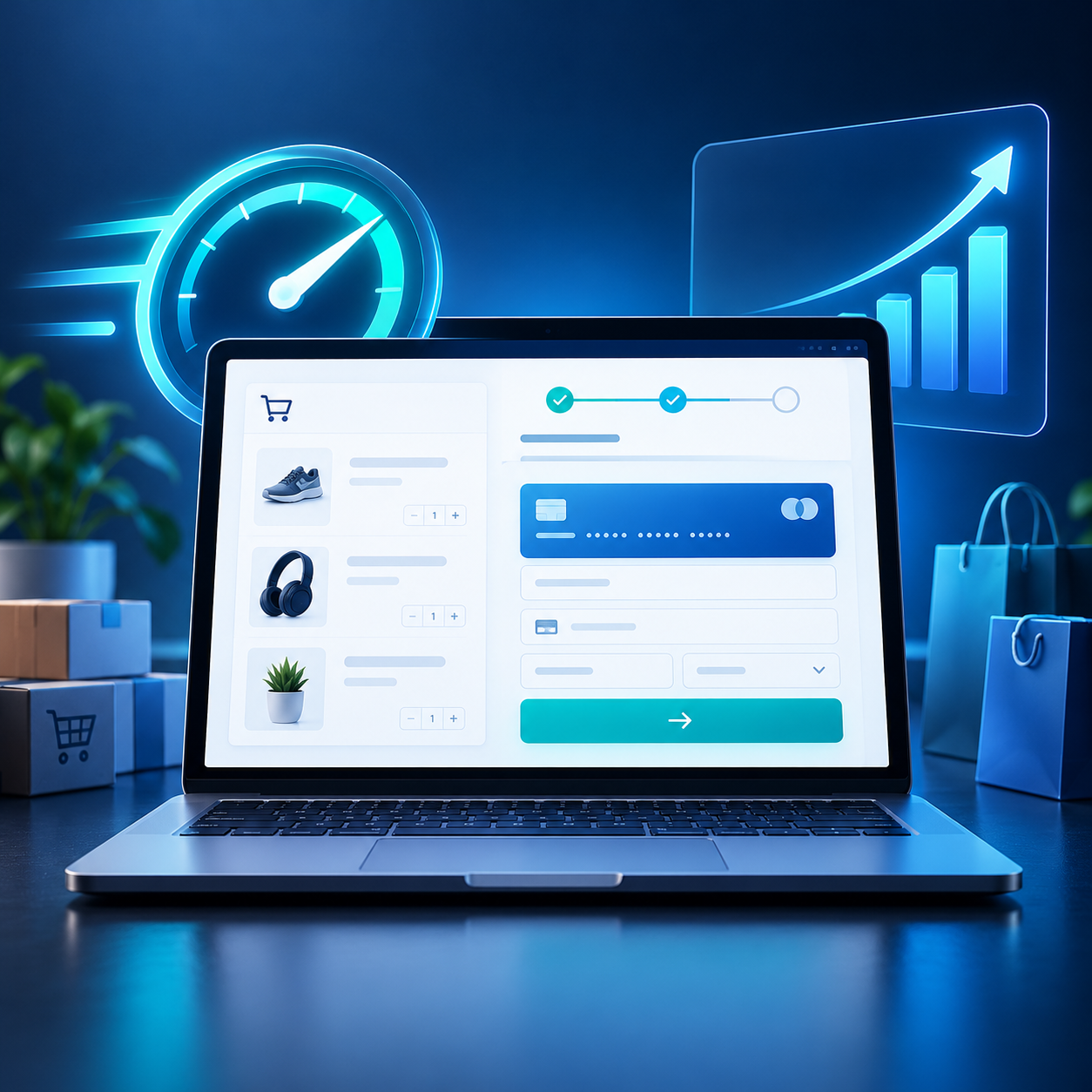
Page speed is a critical factor for success in eCommerce. For WooCommerce store owners, slow-loading pages can lead to high bounce rates, decreased conversions, and ultimately lost sales. In an online landscape where consumers expect quick results, prioritizing speed is essential. This guide will provide clear and actionable tips that can be implemented easily to optimize your WooCommerce store for faster page loading.
1. Choose the Right Hosting Provider
Your hosting provider plays a significant role in your website’s performance. Look for a provider that specializes in WordPress or WooCommerce hosting. Consider the following:
- Performance: Choose a host with ample resources and high uptime reliability.
- CDN Integration: A Content Delivery Network can speed up your site’s loading time by storing copies of your site on multiple servers worldwide.
- Support: Opt for a host with 24/7 support to address any potential issues quickly.
2. Optimize Images for Web
Large images are often the culprit behind slow page loads. To optimize images:
- Compress Images: Use tools like TinyPNG or ImageOptim to reduce file sizes without sacrificing quality.
- Use Appropriate Formats: Use JPEG for photographs, PNG for graphics with fewer than 16 colors, and consider using WebP for better compression.
- Implement Responsive Images: Use the
<picture>tag or thesrcsetattribute to serve different image sizes based on the user’s device.
3. Minimize HTTP Requests
Each element on a webpage requires a separate HTTP request, which can slow down performance. Reduce these requests by:
- Combining Files: Merge CSS and JavaScript files to decrease the number of requests needed.
- Using Sprites: Combine multiple images into a single sprite sheet.
- Eliminating Unused Plugins: Disable plugins that are unnecessary for your site’s functionality.
4. Enable Caching
Caching generates static versions of your content, which speeds up load times for returning visitors. Here are ways to implement caching:
- Browser Caching: Set up caching rules in your .htaccess file to store elements on the visitor’s browser for a specified time.
- Page Caching: Use caching plugins like WP Super Cache or W3 Total Cache to create static versions of your pages.
- Object Caching: Consider persistent object caching options like Redis or Memcached for heavy database-driven sites.
5. Optimize Your Database
An over-cluttered database can slow your site down. Regular maintenance is necessary to keep it efficient:
- Regular Cleanup: Remove old revisions of posts, spam comments, and unwanted data using plugins like WP-Optimize.
- Limit Post Revisions: Adjust the number of post revisions saved in your
wp-config.phpfile with the settingdefine('WP_POST_REVISIONS', 5);.
6. Use a Lightweight Theme
The theme you utilize can significantly impact load speed. Choose a lightweight and optimized theme tailored for WooCommerce:
- Check Performance: Opt for themes known for performance optimization, like Astra or GeneratePress.
- Avoid Feature Bloat: Select themes that offer only the features you need, avoiding those packed with unnecessary extras.
7. Optimize Your WooCommerce Settings
Specific settings within WooCommerce can also influence performance:
- Disable Unused Features: If you’re not using features like reviews or product comparison, turn them off to streamline your store.
- Limit Product Display: Adjust the number of products displayed per page to a manageable number, such as 12 or 24.
8. Optimize JavaScript and CSS
JavaScript and CSS files can increase loading times, especially if they aren’t optimized. Here’s how to mitigate that:
- Minification: Use tools or plugins that minify your CSS and JavaScript to reduce file size.
- Asynchronous Loading: Implement async or defer attributes to load JavaScript files after the DOM has loaded.
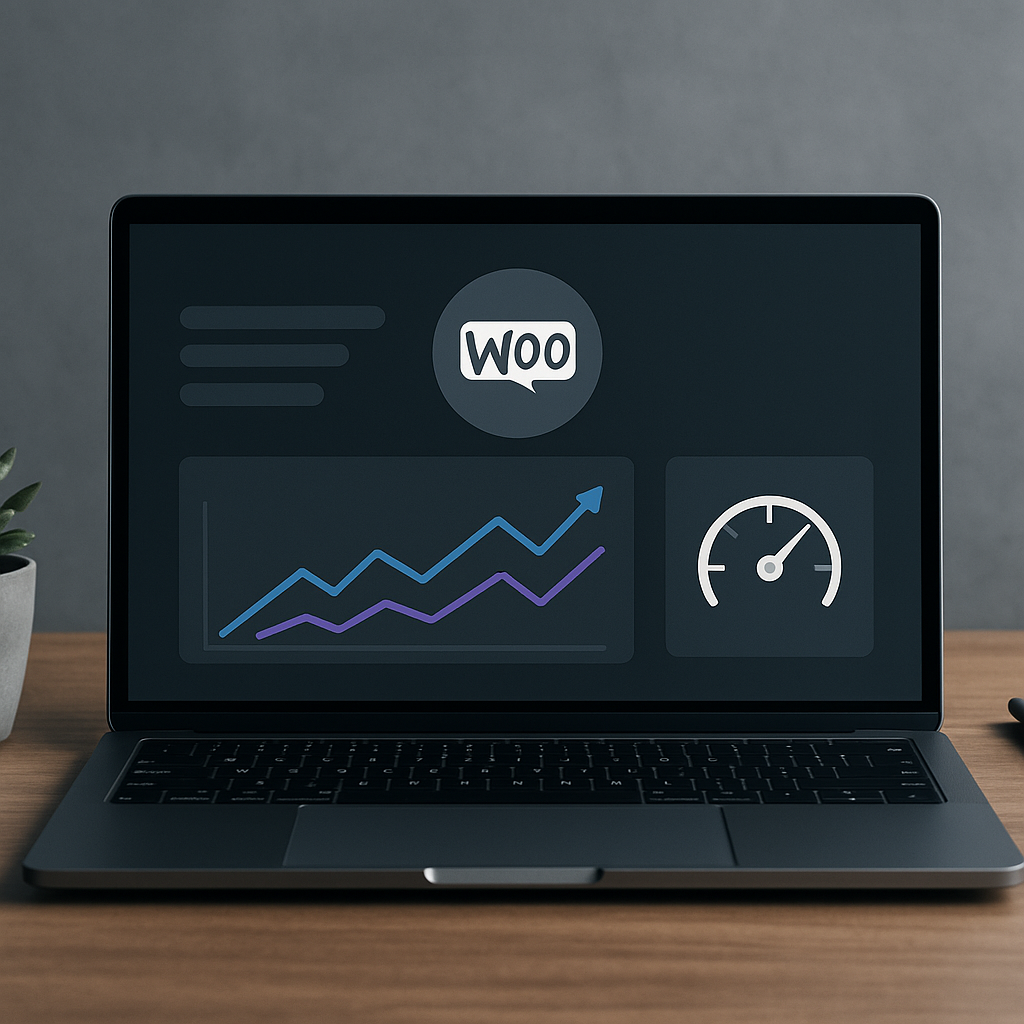
9. Regularly Monitor Performance
Continuous monitoring allows you to identify and rectify performance issues promptly:
- Performance Testing Tools: Utilize tools like GTmetrix, Google PageSpeed Insights, or Pingdom to analyze and track your site speed.
- Set Benchmarks: Establish baseline performance stats to measure improvements.
Conclusion
Optimizing your WooCommerce store for faster page loading requires ongoing effort and attention to detail. By implementing these strategies, you can significantly enhance your site’s performance, improve user experience, and, ultimately, increase conversions. Regularly monitor your store to ensure you maintain optimal performance, adapting your strategies as necessary to meet evolving challenges.
Frequently Asked Questions
1. What is the ideal loading time for a WooCommerce store?
The ideal loading time is under 3 seconds. Faster load times generally lead to lower bounce rates and higher conversions.
2. Can caching plugins improve my WooCommerce store’s performance?
Yes, caching plugins can create static versions of your pages, significantly reducing load times for repeat visitors.
3. How often should I optimize my WooCommerce store?
It’s best to perform optimizations regularly, especially after updates, new plugins, or major changes to your store.
4. What should I do if my site is still slow after optimizations?
If your site remains slow, consider consulting with a professional to audit your site and make recommendations for further improvements.