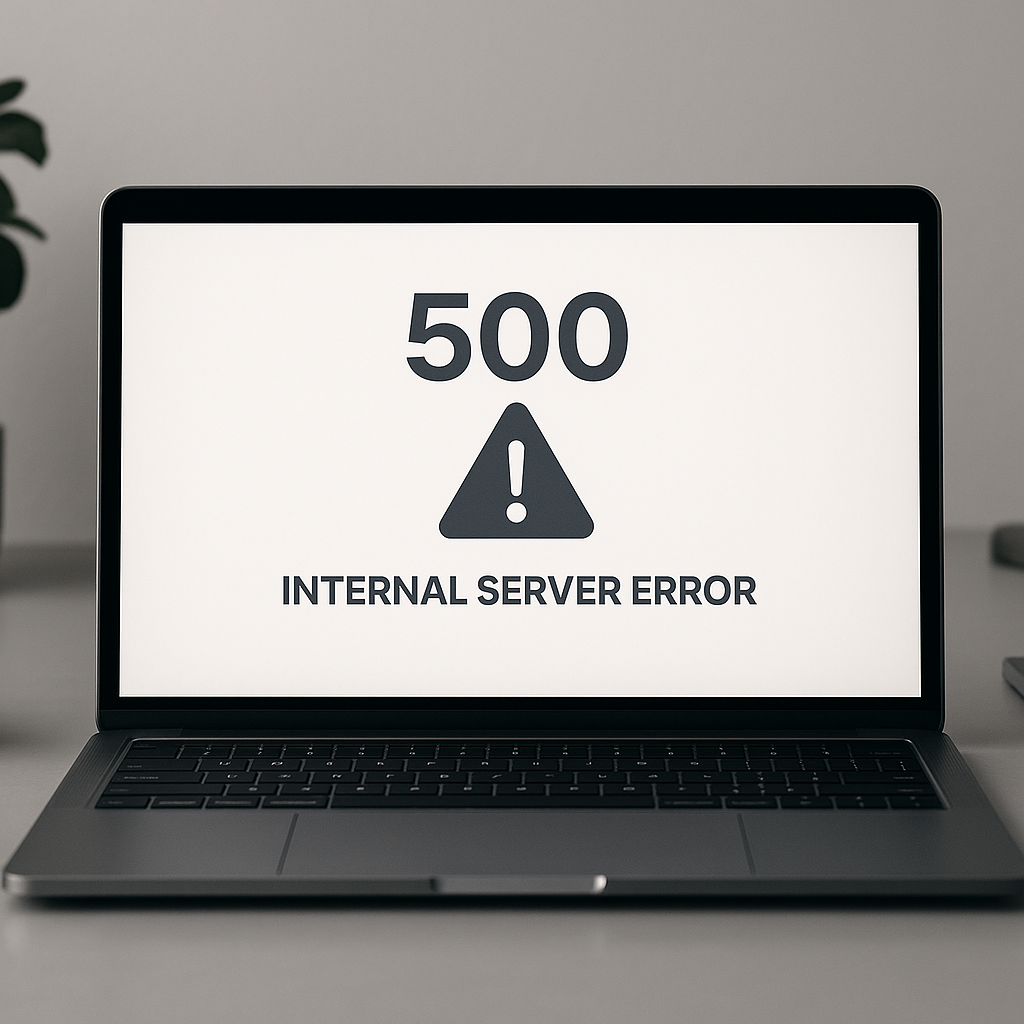
Experiencing a 500 Internal Server Error in WordPress can be frustrating, as it prevents users from accessing their websites. This error usually indicates a problem with the server, making it essential to identify the underlying issue swiftly. In this guide, we’ll walk you through easy and effective methods to troubleshoot and fix the 500 Internal Server Error on your WordPress site, allowing you to get back to business without a hitch.
Understanding the 500 Internal Server Error
The 500 Internal Server Error is a generic error message indicating that something has gone wrong on the server hosting your site, but it doesn’t specify what the exact issue is. This error can arise from various sources, including server configuration issues, plugin or theme conflicts, or even faulty scripts. Understanding potential causes is crucial for troubleshooting effectively.
Common Causes of 500 Internal Server Error
- Plugin Conflicts: Sometimes, poorly coded or incompatible plugins can lead to errors.
- Theme Issues: A malfunctioning theme might also trigger this error.
- Corrupted .htaccess File: This configuration file is essential for URL rewriting and can become corrupted.
- PHP Memory Limit: Insufficient memory allocated for PHP scripts can cause this error.
- File Permissions: Incorrect file permissions can prevent server access to critical files.
Step-by-Step Troubleshooting Guide
1. Refresh the Page
The first step is to simply refresh your page. Sometimes, the error might be temporary and can get resolved by reloading the site.
2. Clear Browser Cache
Your browser might be loading a cached version of your site that could include the error. Clear your browser cache or try accessing your site from an incognito window.
3. Deactivate Plugins
If reloading the page doesn’t work, the next step is to deactivate your plugins:
- Access your website using an FTP client or through your hosting account’s file manager.
- Navigate to the
wp-contentdirectory. - Locate the
pluginsfolder and rename it toplugins_disabled. - Check your website. If it loads, one of the plugins is causing the issue.
- Re-enable the plugins one by one by renaming the folder back to
pluginsand then deactivating them through the WordPress admin panel.
4. Switch to a Default Theme
If plugins are not the issue, try switching to a default WordPress theme:
- In your FTP client, navigate to
wp-content/themes. - Rename your active theme’s folder (e.g.,
mythemetomytheme_disabled). - This forces WordPress to revert to a default theme like twentytwentyone.
- Check to see if the error persists.
5. Check the .htaccess File
A corrupted .htaccess file can lead to a 500 Internal Server Error. To check it:
- Connect to your site via FTP.
- Locate the
.htaccessfile in the root directory of your WordPress installation. - Download a backup of the file locally.
- Delete the remote
.htaccessfile. - Log in to your WordPress dashboard, navigate to Settings > Permalinks, and click Save Changes to regenerate the file.
6. Increase PHP Memory Limit
PHP scripts may require more memory than is available. To increase the memory limit:
- Access your site via FTP.
- Locate the
wp-config.phpfile in your root directory. - Open it and add the following line before
/* That's all, stop editing! Happy blogging. */:define('WP_MEMORY_LIMIT', '256M'); - Save changes and reattempt loading your site.
7. File Permissions Check
File permissions can also cause server errors. Ensure that:
- Directories are set to
755. - Files are set to
644.
You can change permissions via your FTP client. Right-click on the file or folder, select File Permissions, and input the correct values.
8. Enable Debugging
If none of the above steps work, enabling WordPress debugging can provide more insight. To enable debugging:
- Open the
wp-config.phpfile. - Add the following lines to enable debugging:
- Check the
debug.logfile located in the/wp-content/directory for specific error messages.
define('WP_DEBUG', true);

define('WP_DEBUG_LOG', true);

define('WP_DEBUG_DISPLAY', false);

@ini_set('display_errors', 0);
9. Contact Your Hosting Provider
If you still can’t resolve the issue, it’s time to reach out to your hosting provider. They have tools and access that can help pinpoint and resolve server-side issues that you might not be able to address.
Preventing Future Errors
To minimize the risk of encountering a 500 Internal Server Error in the future, here are a few preventive measures:
- Regular Backups: Ensure that you regularly back up your website to revert changes if an error occurs.
- Update Themes and Plugins: Keep all plugins, themes, and WordPress core files updated to their latest versions to avoid compatibility issues.
- Choose Reliable Themes and Plugins: Use reputable sources for themes and plugins to reduce exposure to poorly coded items.
- Monitor Server Health: Consider using monitoring tools to keep an eye on server uptime and performance.
Conclusion
Encountering a 500 Internal Server Error can halt your website’s operations, but with the steps outlined in this guide, you can identify and fix the issue effectively. By understanding the common causes, you can take preventive measures to ensure your WordPress site runs smoothly. If all else fails, don’t hesitate to contact your hosting provider for support.
Frequently Asked Questions
What is a 500 Internal Server Error?
A 500 Internal Server Error is a generic server-side error indicating that the server encountered an unexpected condition preventing it from fulfilling a request.
Will I lose data when fixing a 500 Internal Server Error?
Fixing a 500 Internal Server Error should not lead to data loss, especially if you back up your site before making changes. Always ensure that you have a complete backup before proceeding with modifications.
Can a corrupted plugin cause a 500 Internal Server Error?
Yes, a corrupted or incompatible plugin can lead to a 500 Internal Server Error. Deactivating plugins is a common troubleshooting step to resolve this issue.
Where can I find the error logs for more details?
Error logs can usually be found by enabling debugging in WordPress or by accessing your server’s logs via your hosting account dashboard or FTP.