Encountering a critical error on your WordPress site can be alarming. These errors can disrupt your site’s functionality and lead to a negative experience for your visitors. Fortunately, fixing these issues can often be straightforward with a few strategic steps. This guide will offer practical solutions to help you swiftly address common critical errors in WordPress, ensuring your website runs smoothly again.
Understanding WordPress Critical Errors
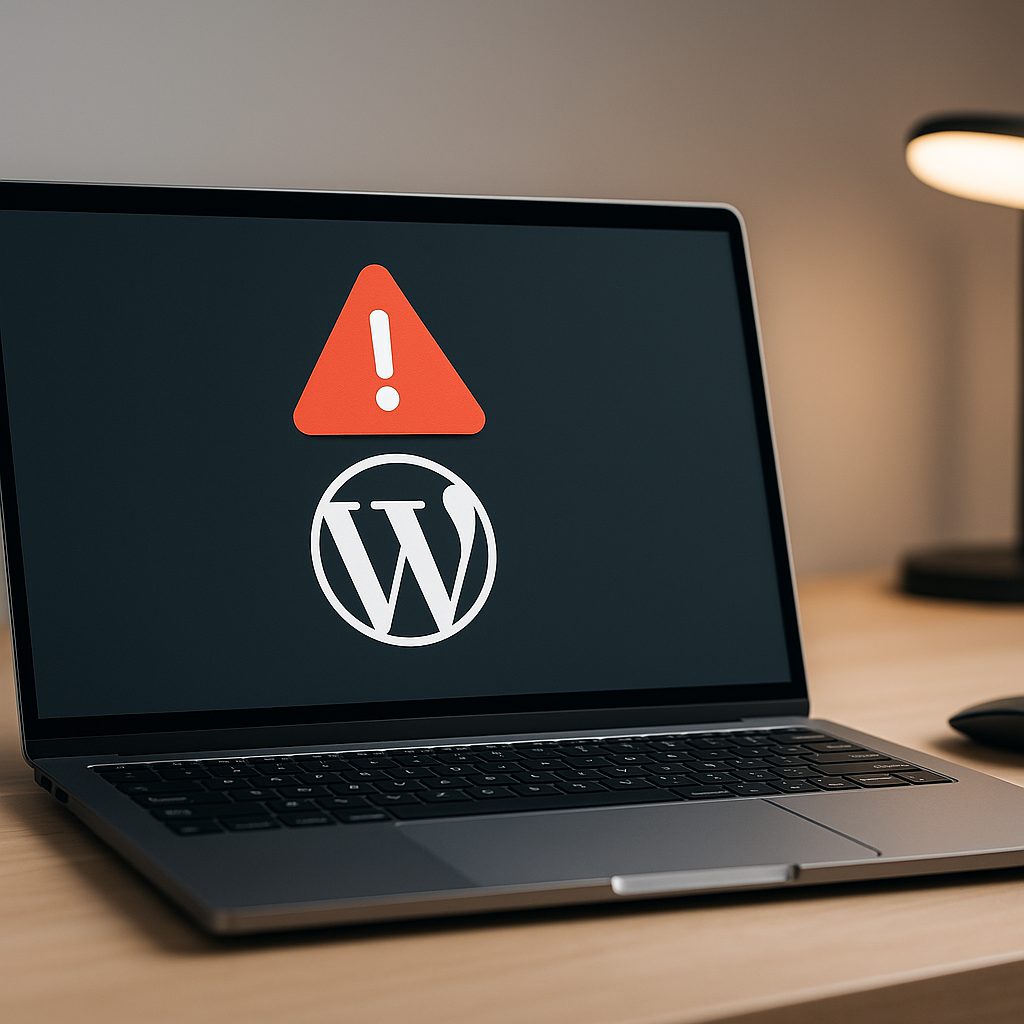
A critical error indicates that something is wrong on your site that prevents it from loading properly. This might manifest as a blank screen or an error message informing you that the site is temporarily unavailable. Critical errors often stem from issues such as:
- Plugin or theme conflicts
- Exhausted memory limits
- Corrupted files or database issues
- PHP errors
Typically, WordPress displays a message that provides a brief explanation of the problem along with a link to the email address associated with your admin account. This email can provide additional information about the error, which can help in diagnosing the issue.
Step-by-Step Guide to Troubleshoot and Fix Critical Errors
1. Enable Debugging
To better understand the nature of the error, turn on debugging in WordPress. This will provide detailed error messages instead of the generic critical error notice. To enable debugging:
- Connect to your website via FTP or use the file manager in your web hosting control panel.
- Open the
wp-config.phpfile located in the root directory of your WordPress installation. - Locate the line that says
define('WP_DEBUG', false);and change it todefine('WP_DEBUG', true);. - To log errors into a file, add the line
define('WP_DEBUG_LOG', true);below it. - Save changes and refresh your site to see the detailed error.
After diagnosing the issue, remember to disable debugging for security reasons by resetting WP_DEBUG back to false.
2. Check for Plugin or Theme Conflicts
Conflicts between plugins or between a plugin and your WordPress theme are commonly responsible for critical errors. To identify the culprit:
- Deactivate all plugins at once via the Plugins section in the WordPress dashboard.
- Check if the site is functioning correctly. If it is, reactivate plugins one by one until the error reappears. This will help identify which plugin is causing the problem.
- If the issue persists after deactivating all plugins, switch to a default WordPress theme (like Twenty Twenty-One) to rule out theme-related problems.
Once you identify the problematic plugin or theme, consider replacing it with an alternative, contacting the developer for support, or searching for updates.
3. Increase Memory Limit
If you are running into “memory exhausted” errors, increasing your site’s memory limit may resolve the issue. To do this:
- Edit your
wp-config.phpfile again. - Add the following line before the line that says
That's all, stop editing!: define('WP_MEMORY_LIMIT', '256M');
After saving your changes, check if the issue is resolved. If not, consider reaching out to your hosting provider to inquire about increasing the PHP memory limit.
4. Restore from Backup
If the error occurred after a recent update or change, restoring your site from a backup can be an effective solution. Many hosting providers offer backup solutions, such as cPanel or managed WordPress options. Here’s how to restore from a backup:
- Access your hosting account’s control panel.
- Look for the backup section and select the most recent backup prior to the error occurrence.
- Follow the prompts to restore your site.
Always ensure you have regular backups in place to avoid data loss and make recovery easier.
5. Disable .htaccess File
A corrupted .htaccess file can also cause critical errors. To check this:
- Connect to your site via FTP.
- Locate the
.htaccessfile in the root directory. - Rename the file to
.htaccess_old. - Try to load your website again. If it works, go to the WordPress dashboard, navigate to Settings > Permalinks, and click Save Changes to generate a new
.htaccessfile.
If the issue persists, you will need to investigate other potential issues.
6. Check File Permissions
Incorrect file permissions can prevent WordPress from accessing specific files or folders, leading to critical errors. Ensure file permissions are set correctly:
- Files:
644 - Directories:
755 wp-config.php:440or400for additional security
File permissions can usually be adjusted through your FTP client or hosting control panel.
Conclusion
While encountering a critical error in WordPress can be daunting, most issues are resolvable with the steps outlined above. By enabling debugging, checking for conflicts, increasing memory limits, restoring from backups, addressing .htaccess issues, or checking file permissions, you can typically restore your site to full functionality. Regular maintenance and updates will help minimize the occurrence of these errors, giving you peace of mind as you manage your website.
Frequently Asked Questions
1. What is a critical error in WordPress?
A critical error in WordPress is a serious issue that prevents the website from loading, often due to plugin or theme conflicts, memory exhaustion, or corrupted files.
2. How can I restore my WordPress site from a backup?
You can restore your site using your hosting provider’s backup solutions found in your control panel, following the instructions to revert to a previous snapshot of your site.
3. What should I do if I don’t have a backup for my website?
If you lack a backup, consider reaching out to your hosting provider for assistance. They may have automated backups or recovery options available.
4. Why are my plugins causing conflicts?
Conflicts can arise from various factors, such as compatibility issues, outdated code, or similar functionalities among multiple plugins. Regularly updating your plugins and themes can help prevent these issues.
Stuck on this problem? Our team offers a WordPress troubleshooting and fixes with a clear scope and quote within 24 hours. Get in touch.