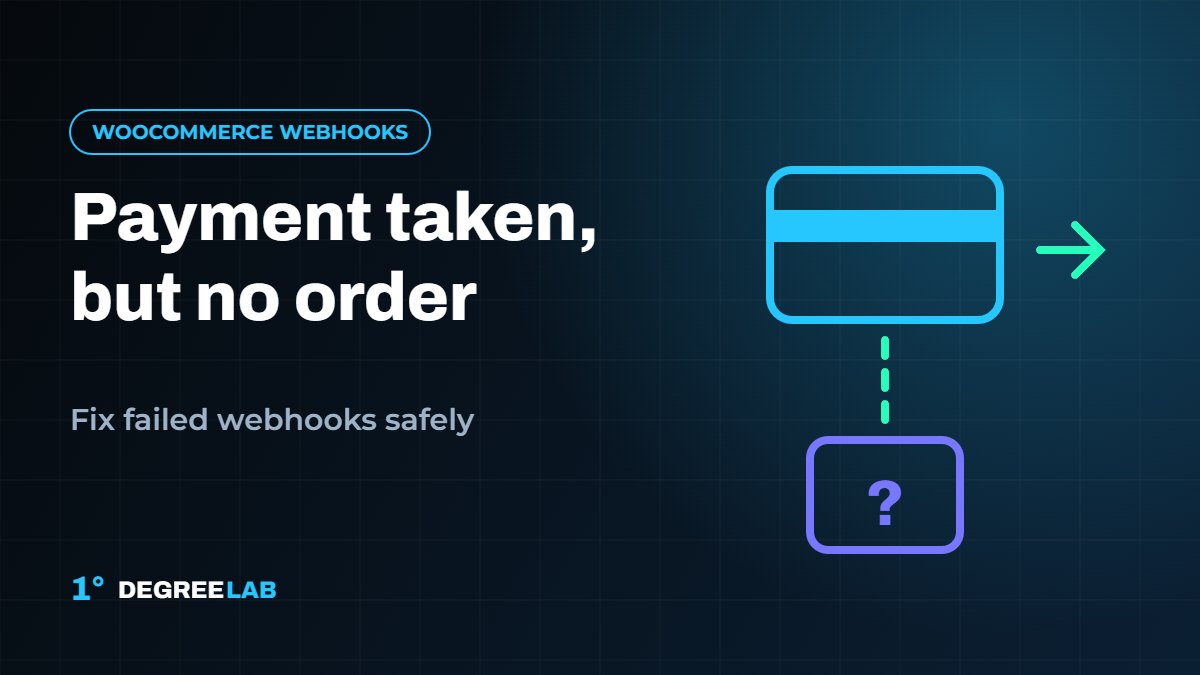
A customer pays, the money leaves their card, but your store shows no order or leaves it on “Pending payment”. In most cases the payment itself worked and the confirmation that should have reached your store did not. That confirmation usually travels by webhook.
How the payment confirmation reaches WooCommerce
With many gateways, including Stripe and PayPal, the gateway tells your store about a successful payment by sending a request (a webhook) to a URL on your site. WooCommerce then marks the order as paid. If that request never arrives, is blocked or is rejected, the order stays unpaid even though the payment succeeded.
Common reasons webhooks fail
- The webhook URL is wrong. After changing domain, moving from http to https, or adding or removing www, the URL saved at the gateway can point to the old address.
- A redirect is in the way. If the webhook URL redirects (for example http to https), many gateways treat that as a failure.
- A firewall blocks it. Security plugins, Cloudflare rules or server firewalls can block requests coming from the gateway’s servers.
- The signing secret does not match. If the secret saved in WooCommerce differs from the one at the gateway, the request is rejected as unverified.
- Caching or maintenance mode. A cached or password-protected URL may never run the webhook handler.
- Timeouts or PHP errors. If the site is slow or throws an error while handling the request, the gateway sees a failed delivery and may retry later.
How to check it, step by step
- Open the gateway dashboard. Most gateways show a list of webhook deliveries with the response your site returned. Find the event that matches the missing order.
- Read the response code. A 2xx response means your site accepted it. A 301 or 302 means a redirect problem. A 401 or 403 usually means a signature or firewall problem. A 404 means the URL is wrong. A 5xx means your site hit an error.
- Compare the URL. Check the webhook URL in the gateway against the one your payment plugin displays in its settings. Use the version your plugin shows rather than one typed by hand.
- Check the logs. In WooCommerce → Status → Logs, open the gateway’s log around the time of the payment.
- Re-send the event. After fixing the cause, most gateways let you resend a failed event, which updates the order without asking the customer to pay again.
Duplicate or repeated webhooks
The opposite problem also happens: a webhook fires more than once and creates duplicate emails or stock changes. Gateways retry deliveries that fail, so a slow response can cause repeats. Fixing the slow response is better than ignoring the retries.
Do not just refund and hope
Refunding the customer and asking them to try again hides the problem and costs you the sale. Fix the webhook, then reconcile the affected orders against your gateway dashboard.
Check the payment in your gateway first
Before changing anything in WooCommerce, open your payment gateway dashboard (for example Stripe or PayPal) and confirm the payment really succeeded. Note the transaction ID and the customer email. Then search WooCommerce for that email, including orders with the status Pending payment, Failed, Cancelled and Trash. This tells you whether the order was never created or exists with the wrong status.
Look at the webhook delivery status
Most gateways show each webhook delivery together with the response your site returned. A 2xx response means your site accepted the event. A 4xx or 5xx response, a redirect or a timeout means the confirmation was blocked or failed before WooCommerce could update the order. Typical blockers are a firewall or bot protection rule, a security plugin, a redirect from http to https or from non-www to www, caching, a wrong signing secret and a live or test key mix-up. Stripe expects your endpoint to return a 2xx response quickly, before any slow processing, which is why server timeouts matter.
How to fix orders that are already stuck
- Confirm in the gateway dashboard that the payment succeeded and was not refunded or disputed.
- Check that the customer did not place a second, successful order for the same items.
- Change the order status to Processing and add an order note with the transaction ID.
- Review stock levels, because manual status changes can affect inventory.
- Fix the webhook problem first, then resend failed events from the gateway dashboard if it offers that option.
Never ship goods for an order until you have seen the payment as captured in the gateway.
How to prevent it from happening again
- Allow the gateway webhook URL through your firewall, CDN and security plugin
- Exclude the webhook endpoint from caching
- Keep WooCommerce and the gateway plugin updated, and make sure live and test keys are not mixed
- Check WooCommerce, then Status, then Logs after any change to hosting, SSL or redirects
- Review orders left on Pending payment every week
Need help?
Webhook problems sit between your server, your security setup and the gateway, which makes them hard to see from one side. Our WooCommerce developers trace failed deliveries, fix the endpoint and check that orders update reliably. Tell us what you are seeing and we will reply within 24 hours.
Frequently Asked Questions
Why is my WooCommerce order stuck on Pending payment after the customer paid?
Usually the gateway charged the card, but the confirmation webhook never reached WooCommerce or was rejected, so WooCommerce was never told that the order was paid.
Should I refund the customer?
If the customer already paid, repairing the order is usually the right move. Refund only if you cannot or will not fulfil the order, and only after you have confirmed what happened in the gateway.
Can this cause duplicate orders?
Yes. Repeated webhook deliveries can create duplicates on poorly configured setups, so check the order list for the same transaction ID before you change any statuses.
Further reading: Stripe documentation on receiving events in your webhook endpoint.
Related guides: WooCommerce checkout optimization and fixing WooCommerce cart issues.