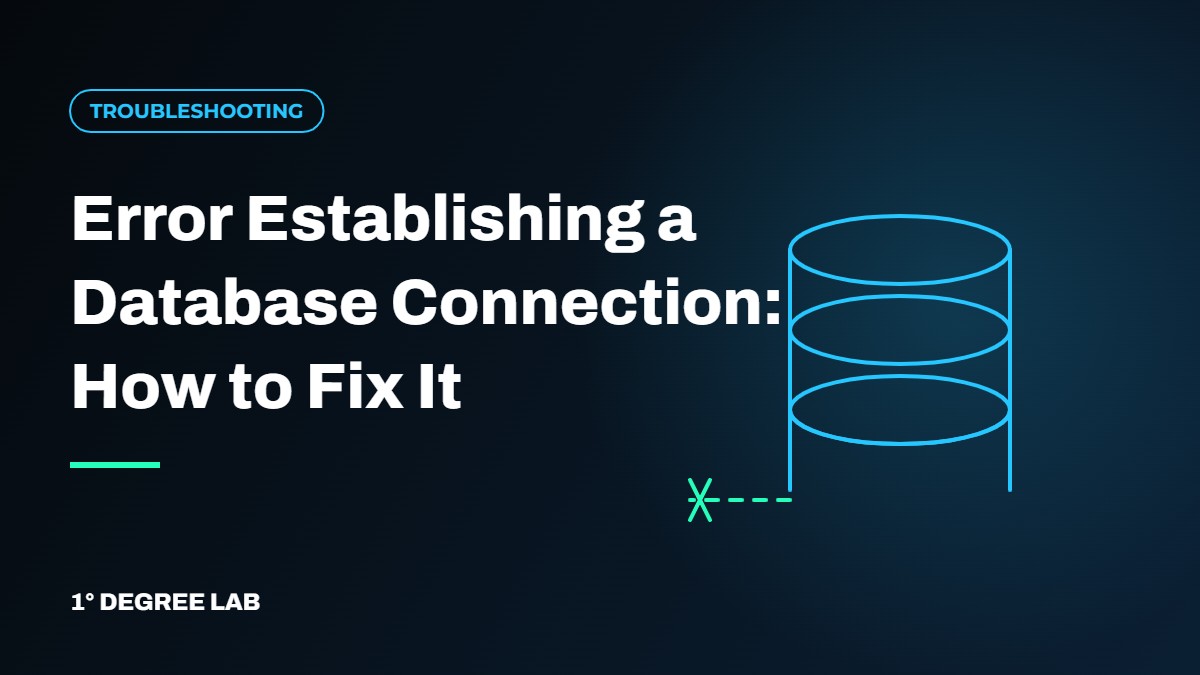
The “error establishing a database connection” message means WordPress cannot talk to its database. The usual causes are wrong credentials in wp-config.php, a database server that is down or overloaded, or damaged tables. Work through the checks below in order, and take a backup before you change anything.
Your content is almost always still safe when you see this error. The files and the database are both there; WordPress just cannot connect them. That is why a calm, step-by-step approach works better than reinstalling anything.
What the error actually means
Every page on a WordPress site is built from database queries. If PHP cannot log in to MySQL or MariaDB, WordPress stops and shows this message on both the front end and the admin. The official WordPress documentation lists three typical causes: incorrect details in wp-config.php, a problem with the web host, or a compromised site (WordPress common errors).
It is different from a white screen or a 500 error, which point to PHP or server configuration problems. If you are not sure which one you have, read our guide to fixing the WordPress 500 internal server error first.
Before you change anything
- Take a fresh backup of the files and the database if your host still lets you reach them. Our guide on how to back up and restore a WordPress site covers the options.
- Check your hosting status page or dashboard for an outage or a database server alert.
- Note whether the front end and
/wp-admin/both show the error. If only wp-admin shows a different message about repairing the database, jump to step 4.
Step-by-step fixes
1. Check the database details in wp-config.php
Connect with SFTP or your hosting file manager and open wp-config.php in the site root. Compare these four values with the database details shown in your hosting panel: DB_NAME, DB_USER, DB_PASSWORD, and DB_HOST. A single wrong character, or a password that was reset at the host, is enough to cause the error. Many hosts use localhost for DB_HOST, but some use a separate hostname, so use the exact value from your panel.
2. Test the database login outside WordPress
Open phpMyAdmin from your hosting panel and confirm the database exists and shows tables. If you can see the tables but WordPress still fails, the user may have lost its privileges on that database. Re-assign the user to the database with all privileges in the hosting panel, then reload the site.
3. Look at the server side
If the credentials are correct, the database server itself may be down or out of resources. This is common on busy shared hosting, after a traffic spike, or when a plugin runs heavy queries. Ask your host whether MySQL is running and whether your account hit a connection or memory limit. Waiting a few minutes and reloading is a legitimate test, because an overloaded server sometimes recovers on its own.
4. Repair damaged tables
If the error appears after a failed update, a crash, or a disk-space problem, a table may be corrupted. In phpMyAdmin, select the database, tick the affected tables, and choose Repair table from the dropdown. The WordPress documentation advises you to always back up your database before acting on it, so export it first. If you are not comfortable running repairs, ask your host to run a check and repair for you.
5. Rule out a plugin or theme as the trigger
If the front end works but the error appears only in some actions, a plugin may be flooding the database with queries. Rename the plugins folder inside wp-content to plugins-off over SFTP, then reload. If the site comes back, rename it again and reactivate plugins one at a time. Our walkthrough on fixing WordPress plugin conflicts shows the full method.
6. Check for a hack
If the credentials were correct yesterday and nobody changed them, look at the modified dates of wp-config.php and recent files for anything unexpected. Unexplained changes can mean the site was compromised. In that case, follow the guidance in our WordPress security best practices guide and change all passwords, including the database password, once the site is clean.
Quick checklist
- Backup taken before any change
DB_NAME,DB_USER,DB_PASSWORD,DB_HOSTmatch the hosting panel- Database exists and the user has privileges
- Host confirms MySQL is running and no limit was hit
- Tables checked and repaired if needed
- Plugins disabled by folder rename as a test
- Recent file changes reviewed for signs of a hack
How to stop it from coming back
Keep regular backups, keep plugins and themes updated, and clean up the database now and then (see our guide to WordPress database optimization). If the error returns every few days, the real problem is usually the hosting plan or a heavy plugin, not WordPress core.
Need a hand?
If you have worked through these steps and the site is still down, I can diagnose it for you. With 10+ years of WordPress experience, I trace the cause first and only then change anything. See my WordPress fixes service or contact me with a short description of what you see. I reply within 24 hours.
Frequently Asked Questions
Will I lose my content if I see this error?
Usually not. The error means WordPress cannot connect to the database, not that the data is gone. Check phpMyAdmin to confirm your tables are still there before you do anything else.
Why did the error appear after I changed a password?
Changing the hosting account password does not normally change the database password. But if you reset the database user’s password in the panel, wp-config.php must be updated to match, or WordPress will fail to connect.
Can I fix it without access to the hosting panel?
Without the hosting panel you cannot verify credentials or check the database server. Contact your host’s support, who can confirm the correct details and whether the service is running.