
When running an online store with WooCommerce, cart issues can hinder sales and frustrate customers. These problems range from minor glitches to significant roadblocks that can cause lost revenue and customer dissatisfaction. This guide will walk you through common WooCommerce cart issues and provide actionable solutions to fix them, ensuring a smooth shopping experience for your customers.
Understanding Common Cart Issues
Before diving into troubleshooting, it’s crucial to understand the various issues that can occur with the WooCommerce cart. Here are some prevalent problems you might encounter:
- Cart Empty on Checkout: Customers may add products to the cart but find it empty at checkout.
- Incorrect Pricing: Unexpected price changes or errors in discounts applied to items.
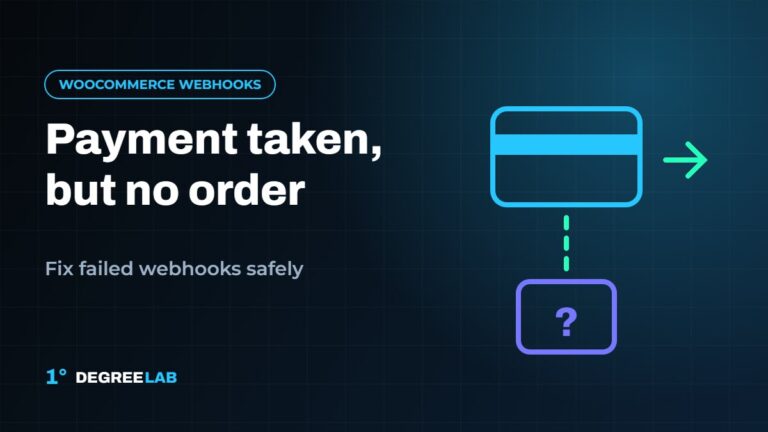
- Payment Gateway Failures: Issues when processing payments can lead to abandoned carts.
- Stock Management Problems: Items that should be marked as out of stock still appear in the cart.
- Browser Compatibility Issues: Sometimes, the cart functions poorly on specific browsers.
Step-by-Step Guide to Fixing Cart Issues
1. Troubleshoot Cart Empty Issues
A cart that empties unexpectedly can significantly impact the user experience. Follow these steps to identify and resolve the issue:
- Check Cookies: WooCommerce relies on cookies to track cart contents. Ensure cookies are enabled in the user’s browser. You can do this by navigating to the browser settings and making the necessary adjustments.
- Review Theme Compatibility: Switch to a default WordPress theme (like Twenty Twenty-One) temporarily. If the problem resolves, the issue may lie in your current theme. Consider contacting the theme developer for support.
- Inspect Plugins: Conflicts with other plugins can cause cart issues. Deactivate all plugins except WooCommerce and check if the cart works. Gradually reactivate plugins to identify the conflict.
2. Verify Pricing and Coupons
Pricing discrepancies can arise due to various factors. To troubleshoot:
- Check Product Settings: Navigate to Products, then Edit for each item. Make sure pricing is correctly set and discounts are applied as intended.
- Test Coupon Codes: If discounts are not displaying correctly, ensure that the coupon codes are active and that their conditions are met. Go to WooCommerce > Coupons to review active coupons.
3. Address Payment Gateway Issues
If customers are facing failures while processing payments, here’s how to address the problem:
- Check Gateway Configuration: Go to WooCommerce > Settings > Payments. Verify that the payment gateways are correctly configured and active.
- Enable Logging: Enable logging for the payment methods you are using. This can help you identify any errors during the payment process and can be found in the Payments settings.
4. Manage Stock Levels Effectively
Having stock management inaccuracies can lead to customer frustration. To ensure proper stock management:
- Configure Stock Settings: Navigate to WooCommerce > Settings > Products > Inventory. Ensure that stock management settings are activated and updated.
- Regularly Update Product Stock: Monitor product inventory levels and update them consistently to avoid selling items that are out of stock.
5. Test for Browser Compatibility
Sometimes, cart issues stem from browser complications. To ensure compatibility:
- Browser Testing: Test your site on different browsers (like Chrome, Firefox, Safari) to identify if the issue is isolated to a specific one.
- Responsive Design Check: Use tools like Google Chrome’s Developer Tools to view your site in different screen sizes and orientations to ensure it is fully responsive.
6. Optimize WooCommerce for Performance
A slow website can lead to cart abandonment. Implement the following optimizations:
- Use Caching: Use caching plugins to reduce load times, improving the speed at which the cart loads. Popular options include W3 Total Cache and WP Super Cache.
- Enable Lazy Loading: Lazy loading images can enhance performance. This ensures that only the images visible on the screen load initially, saving bandwidth.
- Minimize HTTP Requests: Reduce the number of elements on your pages to speed up loading. This can be achieved through optimization plugins.
Best Practices for WooCommerce Cart Management
To ensure a smooth cart experience, adhere to these best practices:
- Regular Updates: Frequently update your WooCommerce and WordPress installations to benefit from the latest features and security improvements.
- User-Friendly Design: Ensure the cart is easy to navigate and visually appealing to enhance customer experience.
- Enable Customer Reviews: Show customer reviews to instill trust and encourage purchases, which can be managed through the WooCommerce settings.
- Conduct Regular Testing: Periodically test the cart functionality to identify and resolve any emerging issues quickly.
Conclusion
Addressing WooCommerce cart issues requires a systematic approach, combining troubleshooting, ongoing maintenance, and proactive strategies. By following this guide, you can minimize cart problems and enhance user experience, ultimately driving higher sales and customer satisfaction.
Frequently Asked Questions
1. Why does my WooCommerce cart keep emptying?
This may be due to cookies not being enabled in the user’s browser or a conflict with plugins or themes. Ensuring your site is up to date and checking configurations can help resolve the issue.
2. How can I fix incorrect pricing in my WooCommerce cart?
Check the product settings and confirm that any active coupon codes are valid. Ensure that discounts and pricing rules are configured correctly.
3. What should I do if payments are failing in WooCommerce?
Review your payment gateway settings, enable logging for errors, and ensure no network issues are causing interruptions in the customer’s connection.
4. How can I enhance the speed of my WooCommerce store?
Implement caching, utilize lazy loading for images, and minimize HTTP requests. Regular site optimizations and performance tests are also recommended.
Helpful resource: Continue with our WooCommerce checkout optimization guide and consult the official WooCommerce documentation for additional guidance.
Helpful resource: Continue with our WooCommerce checkout optimization guide and consult the official WooCommerce documentation for additional guidance.
Need a hand with your WooCommerce store? Our team offers a WooCommerce developer with a clear scope and quote within 24 hours. Get in touch.