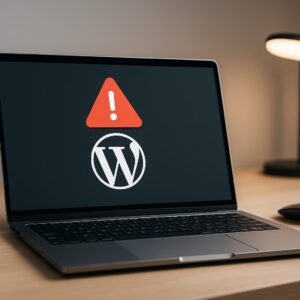
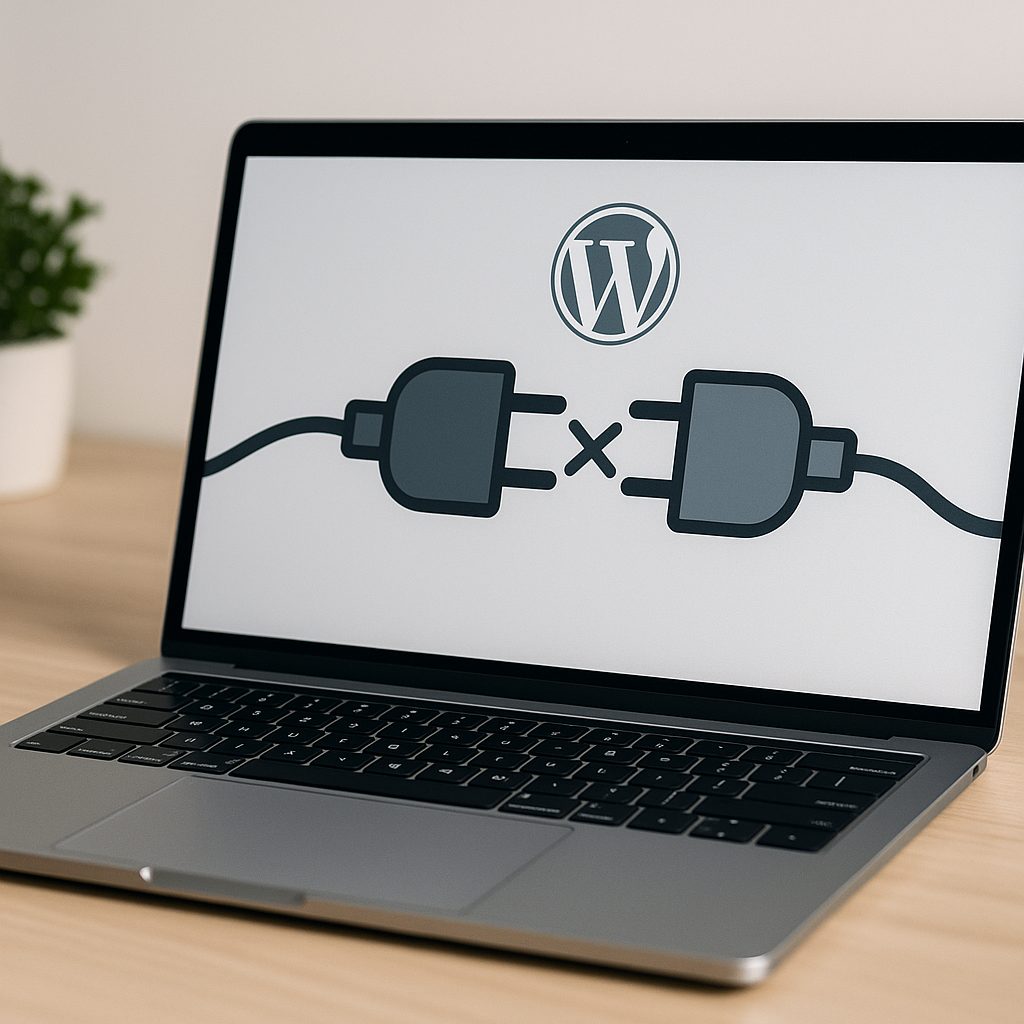
When managing a WordPress site, plugin conflicts can be a source of frustration. These conflicts can lead to broken features, unexpected errors, or a degraded website performance. Understanding how to troubleshoot these issues efficiently is essential for maintaining a smooth-running site. This guide will provide straightforward steps to identify, fix, and prevent plugin conflicts in WordPress.
Understanding Plugin Conflicts
Plugin conflicts occur when two or more plugins interfere with each other, often due to overlapping functionality or incompatible code. This can result in various issues, including:
- Website crashes or errors.
- Incompatibility with themes or WordPress core updates.
- Slow loading times and poor website performance.
Being aware of these potential issues helps site owners take proactive measures to fix and prevent conflicts.
Identifying Plugin Conflicts
The first step in resolving a plugin conflict is identifying the source of the issue. Here’s how you can do it:
1. Check for Error Messages
If your site displays specific error messages, write them down. They often provide clues about which plugins or files are causing the problem.
2. Enable Debugging Mode
WordPress has a built-in debugging feature that can be enabled in the wp-config.php file. To do this:
- Access your website files using FTP or your hosting provider’s file manager.
- Locate the
wp-config.phpfile in the root directory. - Add the following line before
/* That's all, stop editing! Happy blogging. */: - Save the changes and refresh your site to check for any errors displayed on your pages.
define('WP_DEBUG', true);Remember to disable debugging mode after identifying conflicts to prevent sensitive information from being shown to visitors.
3. Deactivate All Plugins
Start by deactivating all your plugins to see if the issue resolves itself:
- Navigate to the Plugins page in your WordPress admin dashboard.
- Select all plugins and choose Deactivate from the bulk actions menu.
- Check your site to see if it loads correctly.
If the issue is resolved, reactivate each plugin one at a time, checking your site after activating each plugin until you identify the conflicting one.
4. Check for Theme Conflicts
Sometimes, the conflict might be with the theme rather than plugins. Switch to a default WordPress theme like Twenty Twenty-One to see if the problem persists. If the issue goes away, your theme may be incompatible with one or more plugins.
Resolving Plugin Conflicts
Once you’ve identified the conflicting plugin, you can take several approaches to resolve the issue:
1. Update Your Plugins and Themes
Ensure that all your plugins and themes are updated to their latest versions. Developers often release updates to fix bugs and compatibility issues. Navigate to the Plugins and Appearance > Themes sections of your dashboard to check for available updates.
2. Disable One Plugin at a Time
If you suspect multiple plugins are causing conflicts, disable them one at a time to find the exact problematic plugin. Once identified, you can:
- Look for a replacement plugin that offers similar functionality without the conflict.
- Contact the plugin developer for support or look for solutions in the plugin’s support forum.
3. Use Alternative Plugins
If a specific plugin continues to cause problems, consider replacing it with an alternative. For example, if a caching plugin conflicts with your SEO plugin, you might try switching to another caching solution that is known to be compatible.
4. Reinstall the Problematic Plugin
Sometimes, simply reinstalling the conflicting plugin can resolve issues caused by corrupted files. To do this:
- Deactivate and delete the problematic plugin.
- Reinstall the plugin from the WordPress Plugin Repository.
5. Seek Professional Help
If you’re not comfortable troubleshooting plugin conflicts yourself, consider hiring a professional who specializes in WordPress services. They can diagnose and fix issues more efficiently.
Preventing Future Plugin Conflicts
Taking proactive measures can significantly reduce the risk of future conflicts:
- Limit Plugin Usage: Avoid using too many plugins. Each additional plugin introduces the potential for conflict. Stick to essential plugins.
- Choose Quality Plugins: Opt for well-reviewed and regularly updated plugins from reputable developers. Check the WordPress Plugin Repository for reliable options.
- Backup Your Site: Regular backups can save you from data loss during troubleshooting. Consider using plugins like UpdraftPlus or BackupBuddy.
- Test Updates in a Staging Environment: Before applying updates, consider testing them on a staging site to ensure compatibility.
By implementing these practices, you can maintain a stable and efficient WordPress site.
Conclusion
Resolving and preventing plugin conflicts in WordPress doesn’t have to be a daunting task. By following the steps outlined in this guide, you can identify issues effectively and maintain a high-performing website. Remember to stay updated with the plugins and themes you use and conduct regular checks. Proactively managing your WordPress plugins will significantly enhance your site’s functionality and user experience.
Frequently Asked Questions
1. What should I do if a plugin update breaks my website?
If a plugin update causes issues, revert to the previous version using your backup or restore the site to a point before the update. Disable the conflicting plugin until a fix is available.
2. How do I report a plugin conflict to a developer?
Visit the plugin’s support forum on the WordPress Plugin Repository. Provide details about the issues you are experiencing, including error messages and steps to reproduce the conflict.
3. Are all plugins compatible with each other?
No, not all plugins are designed to work together. Compatibility issues may arise from overlapping functionality or code conflicts.
4. Can I troubleshoot conflicts without technical skills?
Yes, many troubleshooting steps are user-friendly. If you’re unsure, consider reaching out to professional WordPress services for assistance.
Stuck on this problem? Our team offers a WordPress troubleshooting and fixes with a clear scope and quote within 24 hours. Get in touch.